Category: Excel

  • How to Get Started with AI Using Microsoft Copilot: A Simple Guide for Everyday Users

    If you use Microsoft Word, Excel, Outlook, or Teams, you might have noticed a new helper called Copilot. It’s part of Microsoft’s AI tools and makes your work easier, faster, and even more fun.

    But what exactly is Copilot? And how do you use it if you’re not a tech expert?

    Let’s break it down.

    Copilot Is More Like a Brain Than a Program

    Think of Copilot like a smart coworker, not a robot that always knows the correct answer. It’s designed to help you think, write, plan, and solve problems, but it doesn’t always get things perfect.

    That’s why it’s best to treat Copilot as a thought partner. It can help you:

    • Draft emails
    • Summarize documents
    • Create presentations
    • Brainstorm ideas
    • Analyze data

    But you’ll still need to review and guide what it gives you.

    Which Copilot Do You Have?

    There are different versions of Copilot depending on your Microsoft license. If your workplace uses Microsoft 365, you might already have access to:

    • Copilot in Word, Excel, Outlook, and Teams
    • Copilot in PowerPoint to help build slides
    • Copilot in OneNote to organize your thoughts

    You can check with your IT team or visit Microsoft’s Copilot overview to see what’s included in your plan.

    Be Smart About AI Advice

    AI is exciting, but there’s also a lot of misinformation out there. Some people claim there’s “no risk” in using AI or training it with your data. That’s not true.

    Here are a few things to keep in mind:

    • Training AI on sensitive data can be risky—it might remember things it shouldn’t.
    • Check the sources of any information Copilot gives you.
    • Be cautious about who you learn from—some “AI experts” may not have real experience.

    If someone is giving you AI advice, ask about their background. Just like you wouldn’t take legal advice from someone who’s never studied law, you shouldn’t take AI advice from someone who’s never worked with it.

    Learn for Free—No Extra Cost

    You don’t need to pay for expensive courses to learn how to use Copilot. Microsoft offers free training that’s easy to follow:

    • Get started with AI on Microsoft Learn
    • Copilot for Microsoft 365 Training Hub

    These are included with your Microsoft license—no extra fees.

    Want to Get Better with Copilot? Build These Skills

    To get the most out of Copilot, focus on:

    • Critical Thinking – Don’t just accept the first answer.
    • Asking Good Questions – The better your prompt, the better the result.
    • Creative Problem Solving – Use Copilot to explore new ideas and solutions.

    Yes, Copilot can help you write a quick email. But it can also help you plan your day, solve tricky problems, and develop new ideas—if you know how to work with it.

    Final Tip: Start Small

    Try asking Copilot to:

    • Write a summary of a long email
    • Help you draft a meeting agenda
    • Create a to-do list from a Teams chat

    Once you get comfortable, you’ll see how powerful it can be.

    TechHouse

    Innovative Solutions. Practical Software. Friendly Support.

    Schedule a call  |  View Upcoming Events  |  Access our TechHouse Library of Articles

  • Copilot for Accountants: AI Isn’t Just for Marketing

    Marketing teams adopt AI tools quickly, while accountants often see different results. Some of our clients ask why this happens. Does Copilot lack features for accountants? Do we need special training? How can accountants gain the same productivity benefits seen in other areas?

    Why the difference in Copilot Adoption: Marketing vs. Accounting

    While 75% of marketers feel confident using AI tools, only 45% of accountants do. Whether creating blog posts, images, flyers, or video scripts, AI helps our marketing clients create content. Marketing professionals are quick to use AI and adapt it to their workflows. They often pick it up right away and see productivity gains almost instantly.

    On the other hand, our accountant customers typically find Copilot frustrating. Copilot does not easily create accounting content like month-end reconciliations or year-end board reports. This difference can make it seem like Copilot is better suited for marketing, leaving accountants behind. Is there any benefit to accountants? There is, but it requires a shift in how we think about software.

    What does Copilot Do?

    Before we can understand how Copilot helps accountants, we need to understand just what it does. Copilot offers four key capabilities that help accountants. As an AI-powered tool, Copilot runs on a neural network, like the human brain. That brain has vast stores of information. When writing, it chooses the next best possible word, like how we think by “connecting the dots” based on the information it has.

    1) Copilot understands language and generates text. It can understand written requests and “prompts” and respond narratively. In AI terms, this is a power of large language models (LLM) and GPT (Generative Pre-Trained Transformers).

    2) Copilot can enhance data analysis by visualizing data trends. It can parse information, whether numbers, words, or images, and categorize them. For example, it can highlight the top 10 customers in a table of invoice details.

    3) Copilot can free up valuable time so you can focus on strategic decision-making. Copilot’s foundational model, OpenAI, has absorbed information digitized online over the past 40 years. You can ask for accounting principles, IRS information, or even a template of a standard month-end report. Rather than running 10, 20, or more search engine requests with various answers, you can converse with Copilot and develop an understanding of the topic.

    4) Copilot can automate repetitive tasks like generating complex formulas or replicating budget baselines. Rather than spending hours tweaking complex Excel formulas, you can quickly understand your organization’s data.

    The transition from Excel to Copilot in Excel

    In the past, Excel courses focused on features and formulas. How do you use the navigation bar? What does each button do, and why?

    This approach doesn’t work when expanding Excel with Copilot. Copilot is more like having someone next to you who, though fallible, helps you problem-solve through collaboration. You can ask questions about your work, and it can help you learn how to solve an issue.

    In marketing, Copilot helps create a largely completed draft of a blog, proposal, or similar. Each of these deliverables is word-based. Although there are word-based deliverables in accounting and finance, accountants and finance staff live in tools like Excel. Rather than creating text, Copilot can help you solve problems and gain insights. Also, it can help you create steps more quickly. Copilot in Excel means you are no longer limited by the number of formulas you know or whether you can do pivot tables.

    Copilot’s Excel Superpower: Streamlining Workflows

    Two key best practices when using Copilot in Excel:

    1) Format your information in a table. Pivot tables are not available for Copilot to analyze at the time. Ensure all columns are labeled so that Copilot can understand your question.

    2) In general, Copilot processes input in 2 dimensions and 1 step at a time unless there is an if statement.

    Benefits

    • Automation: Rather than needing to know all the formulas and features of Excel, ask Copilot to add a column or prepare a table with sample data.
    • Summarization: Copilot turns complex data into simple summaries. For example, add a customer sales total column to an invoice detail table with one click.
    • Data Analysis: Spot trends quickly and make informed choices. Ask Copilot to use conditional formatting to highlight the top 10 customers or the top 3 products. You can apply and un-apply as you work through scenarios.

    AI and the Path Forward.

    Using AI tools like Copilot in Excel offers accountants a great chance to improve efficiency. As the business world changes, accountants must adapt and thrive. With the proper training and support, AI can be a powerful tool to get there.

    To close the technology gap, accountants need the support of a culture that values learning. Offering targeted training can help accountants feel more at ease with AI tools. When they see their peers using these technologies successfully, it can boost their confidence and encourage them to engage. Need help figuring out how to get started? Contact us for innovative hands-on training, workshops, and practical rollout plans for your team.


  • Pivot Table Quick Guide

    Pivot Table Quick Guide

    [fusion_builder_container type=”flex” hundred_percent=”no” equal_height_columns=”no” menu_anchor=”” hide_on_mobile=”small-visibility,medium-visibility,large-visibility” class=”” id=”” background_color=”” background_image=”” background_position=”center center” background_repeat=”no-repeat” fade=”no” background_parallax=”none” parallax_speed=”0.3″ video_mp4=”” video_webm=”” video_ogv=”” video_url=”” video_aspect_ratio=”16:9″ video_loop=”yes” video_mute=”yes” overlay_color=”” video_preview_image=”” border_color=”” border_style=”solid” padding_top=”” padding_bottom=”” padding_left=”” padding_right=””][fusion_builder_row][fusion_builder_column type=”1_1″ layout=”1_1″ background_position=”left top” background_color=”” border_color=”” border_style=”solid” border_position=”all” spacing=”yes” background_image=”” background_repeat=”no-repeat” padding_top=”” padding_right=”” padding_bottom=”” padding_left=”” margin_top=”0px” margin_bottom=”0px” class=”” id=”” animation_type=”” animation_speed=”0.3″ animation_direction=”left” hide_on_mobile=”small-visibility,medium-visibility,large-visibility” center_content=”no” last=”true” min_height=”” hover_type=”none” link=”” border_sizes_top=”” border_sizes_bottom=”” border_sizes_left=”” border_sizes_right=”” first=”true”][fusion_text columns=”” column_min_width=”” column_spacing=”” rule_style=”” rule_size=”” rule_color=”” hue=”” saturation=”” lightness=”” alpha=”” content_alignment_medium=”” content_alignment_small=”” content_alignment=”” hide_on_mobile=”small-visibility,medium-visibility,large-visibility” sticky_display=”normal,sticky” class=”” id=”” margin_top=”” margin_right=”” margin_bottom=”” margin_left=”” fusion_font_family_text_font=”” fusion_font_variant_text_font=”” font_size=”” line_height=”” letter_spacing=”” text_transform=”” text_color=”” animation_type=”” animation_direction=”left” animation_color=”” animation_speed=”0.3″ animation_delay=”0″ animation_offset=””]

    PivotTable Quick Guide

    In the era of data-driven decision-making, the PivotTable is a powerful tool that allows users to analyze and interpret complex datasets quickly by creating an interactive summary of the information.

    This blog post aims to guide decision-makers and influencers in small to mid-market companies on how to best leverage PivotTables for their data analysis needs.

    What are PivotTables?

    PivotTables are a feature of Microsoft Excel that enables users to transform columns into rows to extract meaningful insights from our data.

    It allows us to perform aggregations or totals such as average, minimum, or maximum, enabling us to understand our data better and make better decisions.

    How Do PivotTables Work?

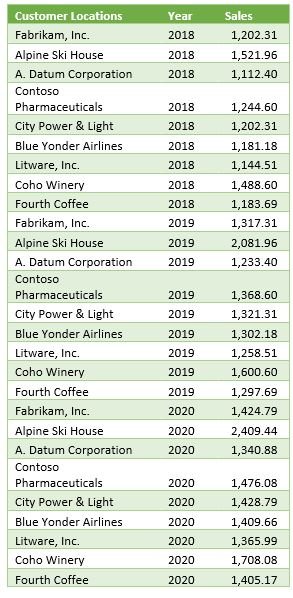
    Let’s consider an example where we have sales data for several customers over three years from 2018 to 2020:

    Excel table showing the year and sales amount per customer location

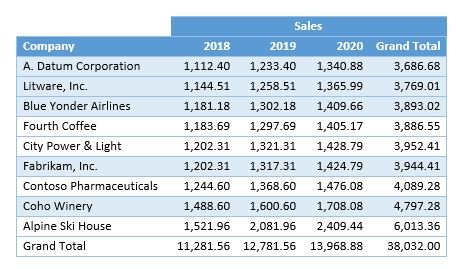
    From the table above, it isn’t easy to quickly discern any customer’s total sales or which customers have the most or least sales in any year. That’s where the magic of PivotTables comes in. With a few steps in PowerPivot, we have a sortable table broken out by year and company.

    PivotTable showing the extracted information extracted from the previous table

    This PivotTable lets us see each customer’s sales trends over time.

    The Caveat

    While PivotTables are a powerful tool, it’s important to note that not everyone might find it easy to use.

    There are alternatives to ensure everyone benefits from more significant data insights. In Excel, conditional formatting and charts may help them understand the data better.

    Another option is to take advantage of PowerBI, which separates the data design from information consumption – making it more accessible to a broader user set.

    Getting Started with PivotTables

    Check out our video to get started, or follow these quick steps to try out Pivot Tables in Excel:

    1. In Microsoft Excel, click on Insert.
    2. Click on PivotTable.
    3. Select your data range and click Insert PivotTable.
    4. You can insert a new sheet by default or select an existing location.
    5. Once there, you will see an empty table where you can build your Pivot.
    6. You can select fields from your data set and drag them into the rows and columns to visualize your data.
    7. You can add data to the upper left to filter.

    Are you ready to leverage the power of PivotTables for your business? Get in touch with our team today! Let's unlock the potential of your data together.

    [/fusion_text][fusion_video video="https://test.wingdingitbiz.com/wp-content/uploads/2021/10/TechHouse-PowerPivot-Intro-1.mp4" video_webm="" width="100%" controls="" preload="" loop="no" autoplay="no" mute="yes" preview_image="" hide_on_mobile="small-visibility,medium-visibility,large-visibility" class="" css_id="" overlay_color="" hue="" saturation="" lightness="" alpha="" border_radius_top_left="" border_radius_top_right="" border_radius_bottom_right="" border_radius_bottom_left="" box_shadow="no" box_shadow_vertical="" box_shadow_horizontal="" box_shadow_blur="0" box_shadow_spread="0" box_shadow_color="" alignment="" margin_top="" margin_bottom="" /][/fusion_builder_column][/fusion_builder_row][/fusion_builder_container]

  • Visualizations vs. Paginated Reports: A Comparative Analysis

    Visualizations vs. Paginated Reports: A Comparative Analysis

    Visualizations vs. Paginated Reports: A Comparative Analysis

    In the world of data analysis, the way we present data can significantly impact the resulting insights. Two popular methods of data presentation are visualizations and paginated reports. 

    Let’s delve into these two methods and understand their strengths and weaknesses.

    Understanding Paginated Reports

    Paginated reports, often traditional reports, are detail-oriented and organized in a tabular format. They are ideal for generating fixed-layout documents with many pages, making them perfect for printing a PDF or exporting to Excel for further analysis.

    Consider the following sales data listed by customers:

    This simple table with rows and columns is a paginated report. Each row contains the key columns of data. Often, paginated reports are several or many pages long, with the column headers repeated at the top of each page and summaries or totals at the end of the report. 

    Paginated reports provide detailed information often used as a reference document for backup or decision-making, like an encyclopedia or dictionary.

    Paginated Reports are not designed for analysis as delivered. However, they can be a source or input to visualization or analytical reports.

    The Power of Visualizations

    While paginated reports are great for detailed data listing, visualizations help us understand complex data sets at a glance.

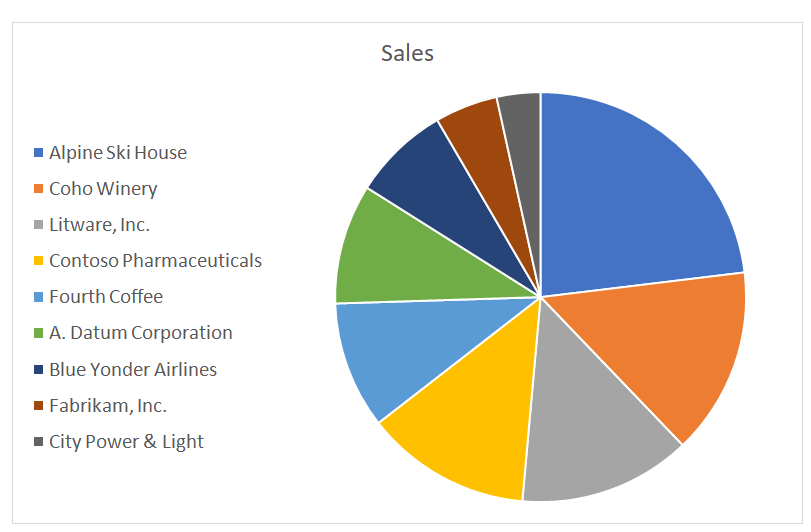
    For instance, presenting the sales data seen in the paginated report above in a pie chart makes it much easier to see which customers contribute the most to sales.

    Visualizations such as pie charts help us see parts of a whole. Similarly, line graph charts are excellent for tracking changes within a single group over time.

    Conditional Format & Pivot Tables: Game Changers

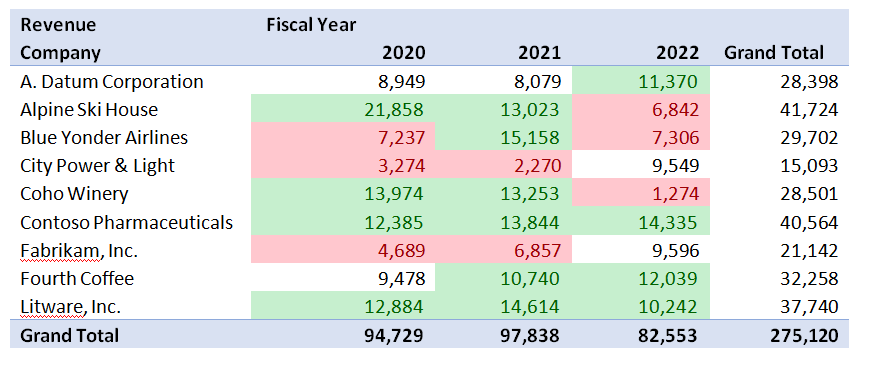
    Conditional formatting and Pivot Tables are powerful Microsoft ExcelTM tools that help us quickly understand data lists. They allow us to highlight anomalies and groups of similar data readily.

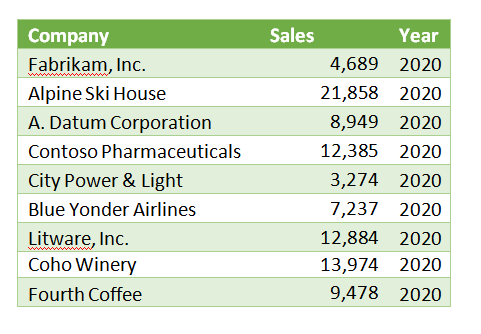
    For example, consider the chart below. 

    We’ve highlighted Revenue above 10,000 in green and less than 8,000 in red. Even though we have three times as much data as in our first table, we can now easily discern which companies and years are high and low performers.

    These tools have limits and challenges. Conditional Format is helpful when the lists are at most 20 or 30 highlighted elements. Pivot tables are easy for some people to manipulate and just not for others.

    Self-Service Analysis with Visualizations in Power BI

    We benefit when users with varying Excel skill levels can still see the trends of our key metrics, like sales. How do we accomplish this? With self-service Power BI.

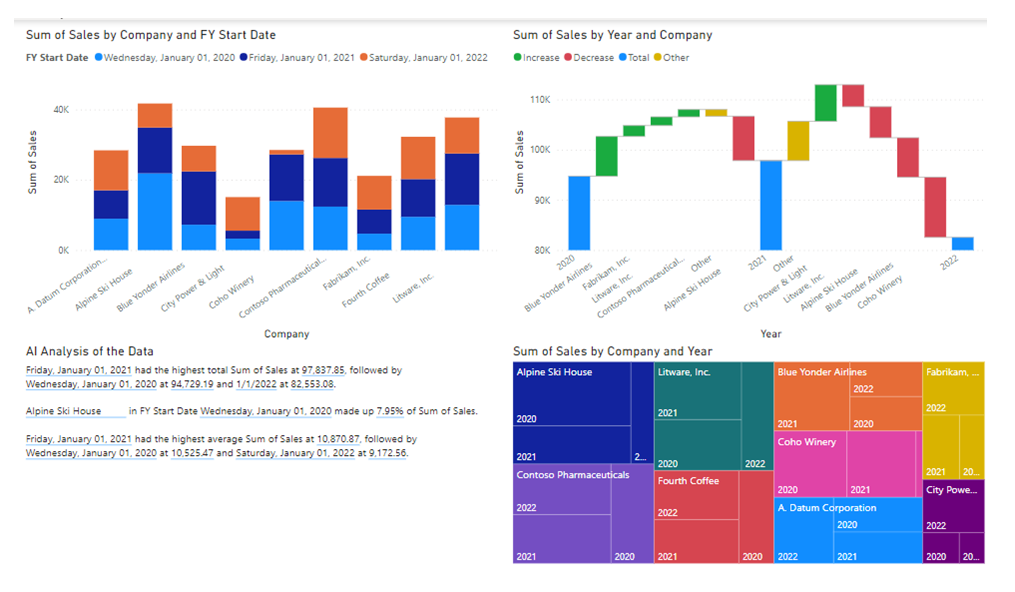
    Power BI provides even more advanced visualizations, including numerous charts with drill-throughs, automated workflows, and even an AI engine to help interpret the data and identify trends and anomalies.

    Below is an example of a single page of 4 visualizations in Power BI against the same data that created the Pivot Table above.

    Conclusion

    Both visualizations and paginated reports have unique strengths in presenting data effectively and efficiently.

    Are you ready to leverage the power of visualizations and paginated reports for your business? Get in touch with our team today!

    Remember: Data is only as good as how you use it! Let’s unlock its potential together.