Category: Digital Transformation

  • 3G Network Shutdown: What You Need to Know

    3G Network Shutdown: What You Need to Know

    3G Network Shutdown: What You Need to Know

    In the ever-evolving world of technology, change is the only constant. 

    One such change that’s on the horizon is the shutdown of older 3G networks. This might seem like a minor blip on the tech radar, but it could have significant implications for many of us.

    Why Does the 3G Network Shutdown Matter?

    Our daily lives are intertwined with technology. We rely on cell phones for communication, GPS for navigation, and various other devices for everything from security to health monitoring. 

    Many of these devices, especially older ones, depend on 3G networks for connectivity. With the impending shutdown of these networks, any device that only supports 3G will cease to function.

    The Evolution of Cellular Networks

    Just as 1G and 2G were replaced by faster and more efficient data transmission technologies, 3G is now giving way to 4G and 5G. 

    The capabilities of these newer networks far outstrip those of their predecessor. Telemedicine, virtual reality, mobile TV, video conferencing – all these high-speed features run off 4G and 5G networks. 

    As such, the world finds fewer reasons to rely on 3G.

    When Will 3G Networks Shut Down?

    While we know that 3G networks are being phased out, the exact date varies by provider.

    According to the Federal Communications Commission:

    • AT&T will finish shutting down its 3G network by February 2022.
    • Verizon will shut down its 3G network by December 31, 2022.
    • T-Mobile will finish shutting down Sprint’s 3G CDMA network by March 31, 2022, and Sprint’s 4G LTE network by June 30, 2022. It also announced it will shut down T-Mobile’s 3G UMTS network by July 1, 2022.

    If your provider isn’t listed above, it would be wise to check with them to see if their service will be affected.

    What Can You Do?

    The first step is awareness. 

    You may have more devices connected through 3G than you realize. This includes not just phones but also other devices with built-in computers, such as car GPS systems, security systems, and medical monitors.

    Once you’ve identified these devices, work with your provider or a tech consultant like TechHouse to ensure your devices and networks are compatible with at least 4G. The solution could be as simple as replacing a part or device or as complex as replacing an entire system.

    Need help navigating the transition from 3G? Contact TechHouse today for expert advice and assistance.

  • Pivot Table Quick Guide

    Pivot Table Quick Guide

    [fusion_builder_container type=”flex” hundred_percent=”no” equal_height_columns=”no” menu_anchor=”” hide_on_mobile=”small-visibility,medium-visibility,large-visibility” class=”” id=”” background_color=”” background_image=”” background_position=”center center” background_repeat=”no-repeat” fade=”no” background_parallax=”none” parallax_speed=”0.3″ video_mp4=”” video_webm=”” video_ogv=”” video_url=”” video_aspect_ratio=”16:9″ video_loop=”yes” video_mute=”yes” overlay_color=”” video_preview_image=”” border_color=”” border_style=”solid” padding_top=”” padding_bottom=”” padding_left=”” padding_right=””][fusion_builder_row][fusion_builder_column type=”1_1″ layout=”1_1″ background_position=”left top” background_color=”” border_color=”” border_style=”solid” border_position=”all” spacing=”yes” background_image=”” background_repeat=”no-repeat” padding_top=”” padding_right=”” padding_bottom=”” padding_left=”” margin_top=”0px” margin_bottom=”0px” class=”” id=”” animation_type=”” animation_speed=”0.3″ animation_direction=”left” hide_on_mobile=”small-visibility,medium-visibility,large-visibility” center_content=”no” last=”true” min_height=”” hover_type=”none” link=”” border_sizes_top=”” border_sizes_bottom=”” border_sizes_left=”” border_sizes_right=”” first=”true”][fusion_text columns=”” column_min_width=”” column_spacing=”” rule_style=”” rule_size=”” rule_color=”” hue=”” saturation=”” lightness=”” alpha=”” content_alignment_medium=”” content_alignment_small=”” content_alignment=”” hide_on_mobile=”small-visibility,medium-visibility,large-visibility” sticky_display=”normal,sticky” class=”” id=”” margin_top=”” margin_right=”” margin_bottom=”” margin_left=”” fusion_font_family_text_font=”” fusion_font_variant_text_font=”” font_size=”” line_height=”” letter_spacing=”” text_transform=”” text_color=”” animation_type=”” animation_direction=”left” animation_color=”” animation_speed=”0.3″ animation_delay=”0″ animation_offset=””]

    PivotTable Quick Guide

    In the era of data-driven decision-making, the PivotTable is a powerful tool that allows users to analyze and interpret complex datasets quickly by creating an interactive summary of the information.

    This blog post aims to guide decision-makers and influencers in small to mid-market companies on how to best leverage PivotTables for their data analysis needs.

    What are PivotTables?

    PivotTables are a feature of Microsoft Excel that enables users to transform columns into rows to extract meaningful insights from our data.

    It allows us to perform aggregations or totals such as average, minimum, or maximum, enabling us to understand our data better and make better decisions.

    How Do PivotTables Work?

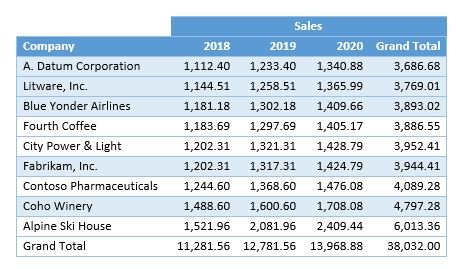
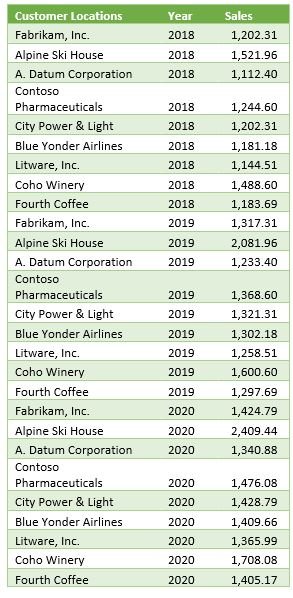
    Let’s consider an example where we have sales data for several customers over three years from 2018 to 2020:

    Excel table showing the year and sales amount per customer location

    From the table above, it isn’t easy to quickly discern any customer’s total sales or which customers have the most or least sales in any year. That’s where the magic of PivotTables comes in. With a few steps in PowerPivot, we have a sortable table broken out by year and company.

    PivotTable showing the extracted information extracted from the previous table

    This PivotTable lets us see each customer’s sales trends over time.

    The Caveat

    While PivotTables are a powerful tool, it’s important to note that not everyone might find it easy to use.

    There are alternatives to ensure everyone benefits from more significant data insights. In Excel, conditional formatting and charts may help them understand the data better.

    Another option is to take advantage of PowerBI, which separates the data design from information consumption – making it more accessible to a broader user set.

    Getting Started with PivotTables

    Check out our video to get started, or follow these quick steps to try out Pivot Tables in Excel:

    1. In Microsoft Excel, click on Insert.
    2. Click on PivotTable.
    3. Select your data range and click Insert PivotTable.
    4. You can insert a new sheet by default or select an existing location.
    5. Once there, you will see an empty table where you can build your Pivot.
    6. You can select fields from your data set and drag them into the rows and columns to visualize your data.
    7. You can add data to the upper left to filter.

    Are you ready to leverage the power of PivotTables for your business? Get in touch with our team today! Let's unlock the potential of your data together.

    [/fusion_text][fusion_video video="https://test.wingdingitbiz.com/wp-content/uploads/2021/10/TechHouse-PowerPivot-Intro-1.mp4" video_webm="" width="100%" controls="" preload="" loop="no" autoplay="no" mute="yes" preview_image="" hide_on_mobile="small-visibility,medium-visibility,large-visibility" class="" css_id="" overlay_color="" hue="" saturation="" lightness="" alpha="" border_radius_top_left="" border_radius_top_right="" border_radius_bottom_right="" border_radius_bottom_left="" box_shadow="no" box_shadow_vertical="" box_shadow_horizontal="" box_shadow_blur="0" box_shadow_spread="0" box_shadow_color="" alignment="" margin_top="" margin_bottom="" /][/fusion_builder_column][/fusion_builder_row][/fusion_builder_container]

  • Streamlining Communication with Microsoft Teams: Our Approach

    Streamlining Communication with Microsoft Teams: Our Approach

    Here at TechHouse, we consider ourselves experts in making remote-only offices work — after all, we’ve been remote from the beginning!

    Over the years, we’ve discovered that Microsoft Teams can significantly enhance internal communication when used effectively:

    • For immediate attention – we prefer a call on Teams
    • For urgent matters – a message on Teams works best
    • For non-urgent issues – an email suffices

    These guidelines help us maintain a balance between addressing immediate needs and focusing on ongoing projects, ensuring optimal productivity.

    Organizing Contacts by Skill

    We’ve found it beneficial to organize contacts by skill rather than by department. This approach allows us to efficiently address specific needs.

    However, it’s crucial to manage the creation of new Teams to prevent confusion and maintain effective collaboration.

    Prioritizing Work-Life Balance

    At TechHouse, we understand the importance of balancing professional commitments with personal responsibilities. That’s why we appreciate the flexibility offered by Microsoft Teams.

    With Teams on their mobile devices, our team members can participate in meetings from anywhere, providing them with the flexibility they need.

    Embracing Flexibility with Microsoft Teams

    Being confined to a desk all day isn’t conducive to productivity or job satisfaction. If your tech guidelines are creating rigidity, it might be time to reconsider.

    Introducing flexibility can foster trust within your team, leading to a more harmonious and productive work environment.

    Investing in technology like Microsoft Teams that empowers your team to work in a way that suits them best could be a game-changer for your organization.

    Ready to optimize your use of Microsoft Teams? Contact us today for more insights!

  • Visualizations vs. Paginated Reports: A Comparative Analysis

    Visualizations vs. Paginated Reports: A Comparative Analysis

    Visualizations vs. Paginated Reports: A Comparative Analysis

    In the world of data analysis, the way we present data can significantly impact the resulting insights. Two popular methods of data presentation are visualizations and paginated reports. 

    Let’s delve into these two methods and understand their strengths and weaknesses.

    Understanding Paginated Reports

    Paginated reports, often traditional reports, are detail-oriented and organized in a tabular format. They are ideal for generating fixed-layout documents with many pages, making them perfect for printing a PDF or exporting to Excel for further analysis.

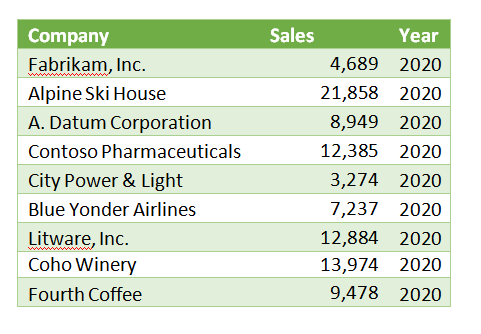
    Consider the following sales data listed by customers:

    This simple table with rows and columns is a paginated report. Each row contains the key columns of data. Often, paginated reports are several or many pages long, with the column headers repeated at the top of each page and summaries or totals at the end of the report. 

    Paginated reports provide detailed information often used as a reference document for backup or decision-making, like an encyclopedia or dictionary.

    Paginated Reports are not designed for analysis as delivered. However, they can be a source or input to visualization or analytical reports.

    The Power of Visualizations

    While paginated reports are great for detailed data listing, visualizations help us understand complex data sets at a glance.

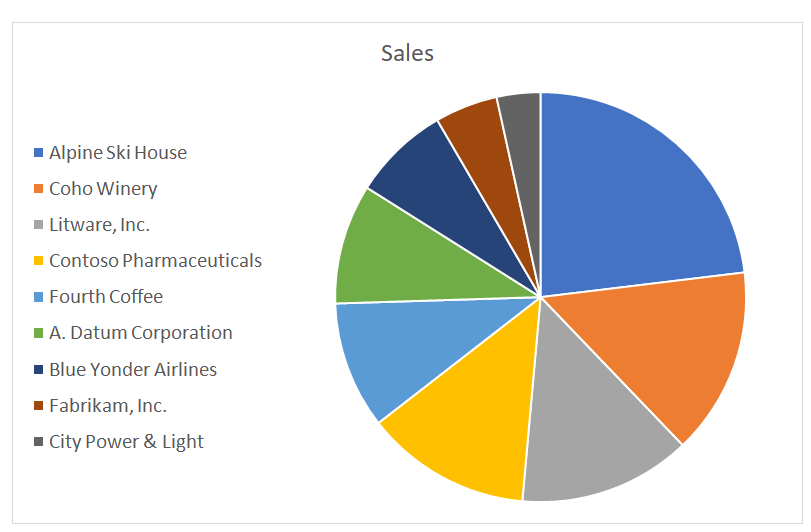
    For instance, presenting the sales data seen in the paginated report above in a pie chart makes it much easier to see which customers contribute the most to sales.

    Visualizations such as pie charts help us see parts of a whole. Similarly, line graph charts are excellent for tracking changes within a single group over time.

    Conditional Format & Pivot Tables: Game Changers

    Conditional formatting and Pivot Tables are powerful Microsoft ExcelTM tools that help us quickly understand data lists. They allow us to highlight anomalies and groups of similar data readily.

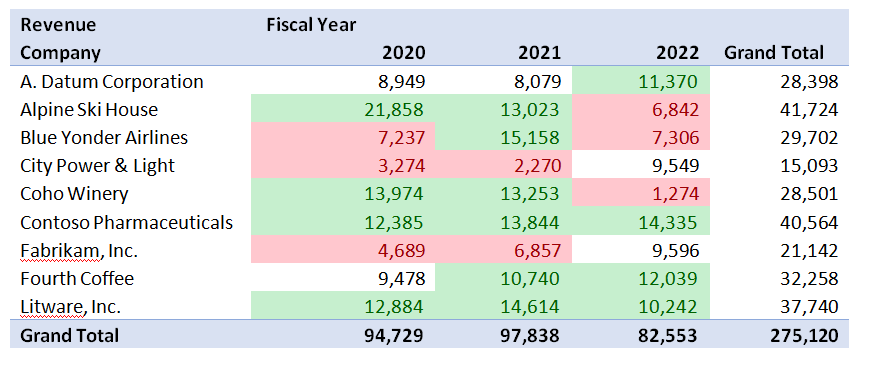
    For example, consider the chart below. 

    We’ve highlighted Revenue above 10,000 in green and less than 8,000 in red. Even though we have three times as much data as in our first table, we can now easily discern which companies and years are high and low performers.

    These tools have limits and challenges. Conditional Format is helpful when the lists are at most 20 or 30 highlighted elements. Pivot tables are easy for some people to manipulate and just not for others.

    Self-Service Analysis with Visualizations in Power BI

    We benefit when users with varying Excel skill levels can still see the trends of our key metrics, like sales. How do we accomplish this? With self-service Power BI.

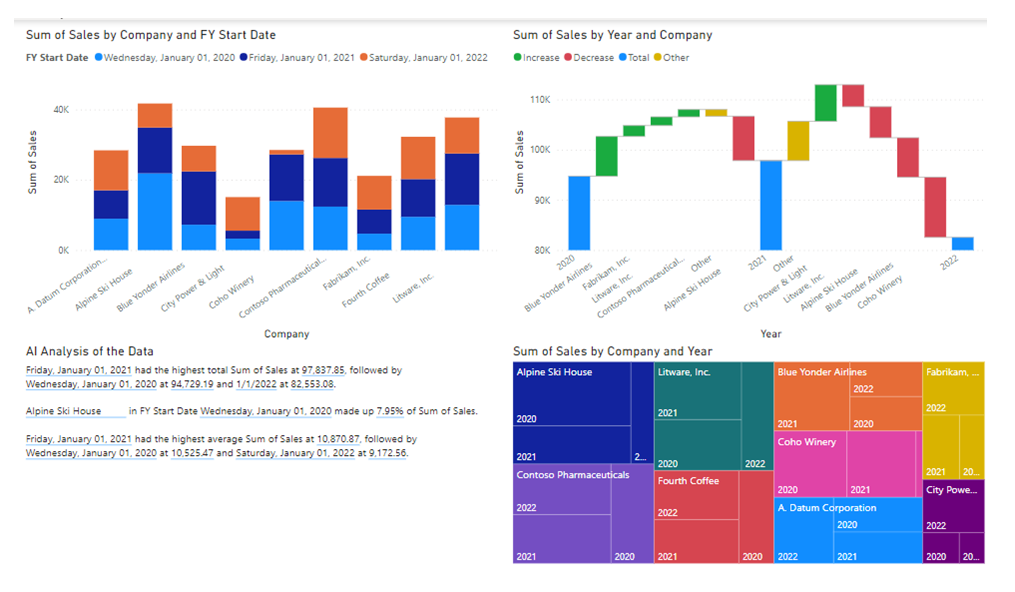
    Power BI provides even more advanced visualizations, including numerous charts with drill-throughs, automated workflows, and even an AI engine to help interpret the data and identify trends and anomalies.

    Below is an example of a single page of 4 visualizations in Power BI against the same data that created the Pivot Table above.

    Conclusion

    Both visualizations and paginated reports have unique strengths in presenting data effectively and efficiently.

    Are you ready to leverage the power of visualizations and paginated reports for your business? Get in touch with our team today!

    Remember: Data is only as good as how you use it! Let’s unlock its potential together.